I actually always have my iPhone with me—during the day, so I can be reached, and at night, of course, it sits on my nightstand. There, it not only charges the battery but also reliably wakes me up in the morning. At night, however, the smartphone can quickly become a nuisance: When apps suddenly send notifications, the screen lights up brightly, or alert tones sound, it’s hard to get a good night’s sleep. Fortunately, there’s a practical solution to this problem: You can set your iPhone to silent mode at night—and important calls from family or close friends will still come through in an emergency.
With the “Focus” feature, you can specify when and who is allowed to interrupt you
“Focus” on the iPhone is a feature that lets you specify when you want to be reachable—and when you don’t. Focus helps reduce distractions by automatically limiting calls, messages, and app notifications. At the same time, you decide which people or apps can still reach you. In other words, the iPhone adapts to your current situation and ensures that you’re interrupted less often. There are many practical ways to use Focus:
- Sleep peacefully at night: Night Mode ensures that notifications from apps and non-urgent calls remain silenced, while important contacts—such as family members—can still reach you. This way, your iPhone can serve as an alarm clock by your bedside without disturbing your sleep.
- Staying Focused on Important Tasks: Whether it’s filing your taxes, doing online banking, or managing your personal affairs, the “Focus” mode temporarily mutes distracting notifications from social media or games so you can concentrate better.
- Time to relax without distractions: Whether it’s during dinner, while reading, or on a movie night, many people just want some peace and quiet. The right Focus mode filters out unnecessary notifications so you can consciously unplug—without having to turn off your iPhone completely.
How to Set Up a New Personal Focus on Your iPhone
- Open the Settings app (
 ) on your iPhone.
 - Tap the “Focus” entry to select it.
- Your iPhone will now display a list of preset focus modes. To set up a new custom focus, tap the blue plus icon in the upper-right corner
 .
. - Here, you can edit an existing focus area. To create a new focus area, select the “Custom” option at the very top of the list.
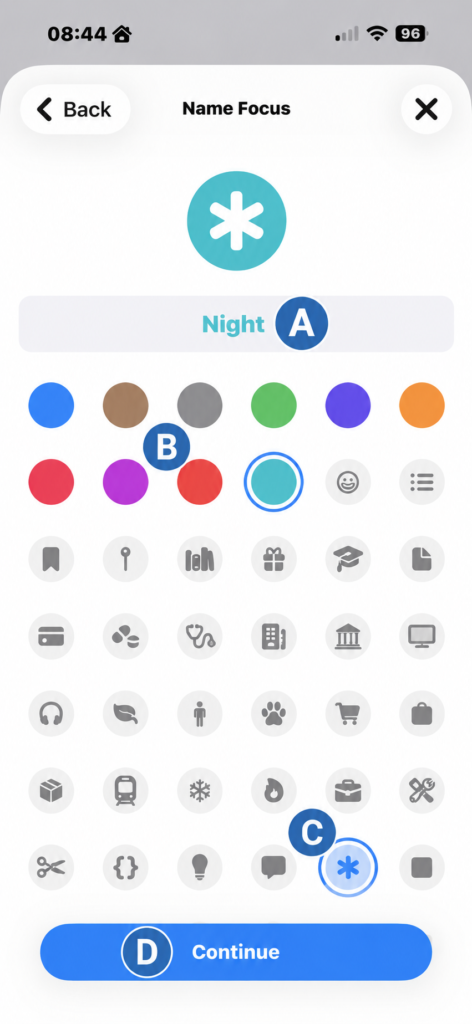
- Now tap the “Name” input field and enter a descriptive name for the focus you want to create—for example, “Night” (A). Below the name field, you can now select a color (B) and an icon (C) for the focus. Then tap “Next” (D) at the very bottom.
- Your iPhone will now display a list of settings you can adjust for your personal Focus. Simply confirm this list by tapping “Customize Focus” at the bottom of the screen.
Here’s how to specify which people and apps you can access when Focus is enabled
Important: For someone to be able to reach you when Focus is enabled, they must be saved as a contact in the preinstalled “Contacts” app on your iPhone.
- To specify who can reach you when Focus is enabled—in this example, even at night—tap the plus icon ” ” labeled “Add.”
Info
Your iPhone has already selected a few contacts you’ve been in regular contact with recently and added them to the list of people you can reach even when Focus is enabled. If you want to remove any of the people preselected here, simply tap the white checkmarks on a green background
- Your iPhone will now display a list of all the people you have saved in the “Contacts” app. Tap to check the boxes next to the entries for the people you want to be able to reach you when Focus is enabled (
 ).
). - Once you’ve made your selection, tap the white checkmark on a blue background in the upper-right corner .
- Next, select “Authorized Persons” and confirm by tapping the white checkmark on a blue background .
- Now tap “Apps.” Then specify which apps are allowed to send you notifications while Focus is active. If, as in the example, you create a Focus for “Nighttime Rest,” you can, for example, enable notifications from an alarm system. Once you’ve finished making your selections, tap the left-pointing triangle “
 ” in the upper-left corner.
How to Automatically Turn Focus On and Off
Fortunately, you don’t have to manually turn Focus on every evening and turn it off again in the morning. A handy schedule takes care of that for you—tailored to your personal sleep habits:
- Tap ” Add Schedule.”
- Next, set the time.
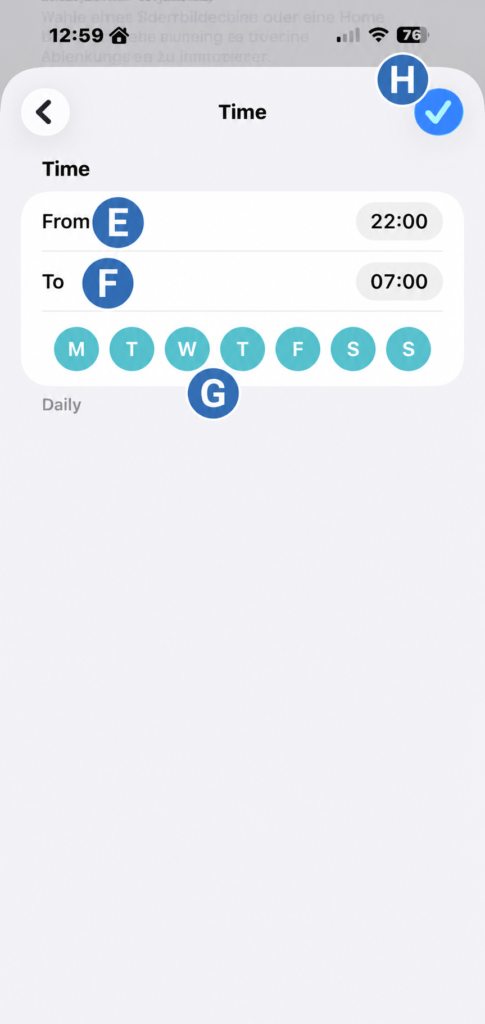
- Then, under “From” (E) , set your usual bedtime. Under “To” (F), specify your usual wake-up time. Also, select the days (G) on which you want to automatically activate focus – the entire week is the default. Confirm your selection by tapping the white checkmark on a blue background. “ (H) .
Done! The device is tailored to your needs and will automatically turn on and off at the times you select.
Conclusion
A personalized Focus mode makes using your iPhone at night much more pleasant: Distracting notifications are silenced, while important contacts can still reach you in an emergency. Once set up, Focus runs automatically in the background—for a more peaceful night’s sleep without having to sacrifice your availability.