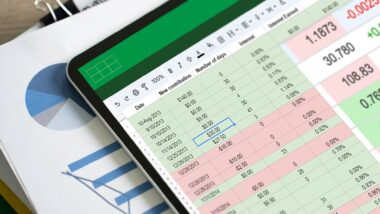
Excel at its best: From the data list to the pivot table
Mastering the Excel pivot table: how to analyse sales data without writing a single formula — and keep your results current with one right-click.
Before creating a pivot table, convert your data list into a dynamic table using Ctrl + T or the Format as Table button on the Home tab. This ensures your pivot table always reflects the latest data after a refresh. Once your table is ready, click into it, go to Table Design → Summarise with PivotTable, confirm the dialogue, and drag the Salesperson field into the Rows area and the Turnover field into the Values area — your data analysis is complete in seconds, with no formulas required.
One important note: pivot tables do not update automatically. Whenever your source data changes, right-click inside the pivot table and select Refresh to synchronise the results. Save your work with Ctrl + S to preserve every change.